Finding the best tech for everyone.
See something you're interested in on The Nifty Tech Blog? Check out The Nifty Tech Store and see if it is available! Also find related products and accessories.
Showing posts with label iOS. Show all posts

Monday, February 14, 2011

iTeleport

[Editor - Sorry for the delay in getting this one out folks. Unfortunately, there is little that you can do when your guts kick you in themselves. Hope you enjoy.]

Ever go off somewhere, to a meeting, or to visit a friend, and realize that you wanted to show something on your computer to someone? Maybe you had your iPhone, iPod Touch, or iPad along with you, and you checked Dropbox and Evernote and cursed yourself because the file wasn't in either one, but was safely on your computer at home, just out of reach. Well, if you have iTeleport installed, that file won't be out of reach anymore. You'll be able to connect to your home computer, find the file and drop it into Dropbox, e-mail it, or anything else you want!

Read More..

|

Monday, October 25, 2010

Osfoora HD, for Twitter - Crossover Review with Bird House Rules

[Tee has informed me that his work is sending him on a business trip this week, and he's been unable to complete the final edits for the podcast in time to launch along with the review. I've included the links to the audio with this article, but I'm afraid that it may take as much as a week before there is anything on the other side of the link. Tee asked that I go ahead with the final article, so I hope you enjoy the review. - Editor]

Welcome back to the final installment of our series with Bird House Rules. We've finally made it to our last Twitter client for iPad. This one is another newcomer to the App store, but we think they've done just about everything right. My friends, I give you Osfoora HD, for Twitter by Said M. Marouf. The name may seem a bit strange, but there is a reason for it. We'll get back to that later. Osfoora sells for $3.99, and to us, that seems like money well spent. Version 1.1.2 has a huge list of features. One of the surprising things about Osfoora HD is that it actually works as well in portrait mode as it does in landscape. The developer really put a lot of thought and effort into this client, and it shows. On top of that, he also developed and supports Osfoora for the iPhone, a separate code base. And he's just a lone developer, working on his own. Said, our hat is off to you. In many ways, you've done more on your own than many large companies have done with a team of programmers. Respect, sir!
Read More..

|

Tuesday, October 12, 2010

TweetTime for iPad - Crossover Review with Bird House Rules

Welcome back to another installment of the crossover series with Bird House Rules. We're almost done with looking at Twitter clients for iPad. This week we'll be looking at a client that is a relative newcomer to the App store, TweetTime for iPad by Dong-Wook Kim. TweetTime for iPad is a $2.99 purchase in the app store and is currently up to version 1.3.4. As is typical for applications for the iPad, landscape mode is more useful at illustrating the capabilities of the product than Portrait mode, so once again you'll be seeing a lot of Landscape pictures here.
Read More..

|

Monday, September 27, 2010

Twittelator for iPad - Crossover Review with Bird House Rules

And we're back, with another crossover review with Bird House Rules. This week we're looking at Twittelator for iPad from the folks at Stone Design, aka Big Stone Phone. Twittelator is the last of our "old favorites", being a popular iPhone Twitter client in the past. The folks at Stone Design have been building interesting tools for a while now, and they definitely take a fresh approach to things. While there are free and paid versions of their iPhone Twittelator client, if you want it on the iPad, you'll need to pay $4.99 for the privilege. Twittelator has long been one of Tee's favorite clients on the iPhone, and is still one of his favorites on the iPad. Let me show you why.
Read More..

|

Monday, August 30, 2010

TweetDeck for iPad - Crossover Review with Bird House Rules

This is the third in the series of reviews with Tee Morris from the Bird House Rules podcast. We have been looking at Twitter clients for the iPad. Tee and I sat down and recorded audio for the Bird House Rules podcast, and I'm posting a companion reviews here. I encourage all my readers to also check out the audio from the podcast. You don't need an iPod to listen to the podcast, just something that can play an MP3 file. I hope you're enjoying this series as much as we're enjoy bringing it to you.
Read More..

|

Monday, August 16, 2010

Echofon Pro for Twitter - Crossover Review with Bird House Rules

Welcome to the second in the series of reviews with Tee Morris from the Bird House Rules podcast. In this series we are looking at Twitter clients for the iPad. Tee and I sat down and recorded audio for the Bird House Rules podcast, and I'm posting a companion review here. I encourage all my readers to also check out the audio from the podcast. You don't need an iPod to listen to the podcast, just something that can play an MP3 file. I hope you've enjoying this series as much as we enjoy bringing it to you.

Last time we looked at Tweet Flow. This time we're looking at Echofon Pro for Twitter. Echofon is one of a group of Twitter apps that we tend to think of as old familiar favorites. In Echofon's case this is because it started out as Twitterfon, a Twitter client for the Mac and the iPhone. If you're familiar with Echofon on any of these platforms, then you have a good idea what you'll see on the iPad. But with Echofon Pro, they've re-vamped things to take advantage of the iPad's screen space. Echofon was written by Naan Studio, Inc, and is available from the App Store for $4.99. Echofon Pro is a plus app, meaning that it will work on the iPhone as well as the iPad, but most of the functions we'll be talking about only exist on the iPad. Echofon is a full-featured Twitter client aimed at handling just about anything you might want to do on Twitter. We believe that it comes pretty darn close.

The first place where Echofon moves past Tweet Flow is in its ability to handle multiple Twitter accounts. You can set up as many accounts as you like, Echofon will let you switch between them at will. Admittedly, you can only view tweets associated with one account at a time, but very few clients will allow you to look at tweets from multiple accounts at the same time.


As you would expect, Echofon handles both landscape and portrait views. Portrait may be better when you're just reading what is in your stream as it lets you see more tweets at one time, but to see more of what Echofon can do, we're pretty much going to concentrate on the Landscape views.


Same tweets, just a more expanded menu bar on the left side. The Home section naturally shows you all of the tweets in your Twitter stream. The tweets are automatically updated every one, two, or three minutes according to how you've updated your settings. By default, it updates every minute. You can turn off auto-updating if you like, or refresh by tapping the refresh icon in the upper right corner.

Naturally, Echofon will show you your Mentions, Direct messages, and Favorites. Unlike Tweet Flow, Echofon also handles Twitter Lists, both lists you've created and ones that include your account. You can also create and save searches and check on trends in the tweets in your local area, across the country, or across the world. This is a fully featured app, so we won't be doing a complete walkthrough like we did with Tweet Flow. We'll just be looking at a few of the highlights.


One of the strengths of Echofon has always been its ability to track a reply back to the tweet that prompted the reply and to pull up the related tweets in the conversation. You'll notice in the above screen shot that all the tweets have an icon on the right of two overlapping conversation bubbles. That is the button for tracking back the rest of the conversation.


When you click the button, Echofon pops up a windowlet and shows the conversation so far as a chat window. Tweets are ordered with the oldest first and the more recent below. Not only does Echofon detect the tweet replied to, it finds any other tweets associated with the conversation in question and displays them. This includes comments from third parties, and any other comments made after the tweet whose button you clicked. While many other clients also supply this kind of conversation tracking, Echofon seems to have one of the best algorithms out there for  selecting the relevant tweets.


Direct messages are organized according to the sending account. This way you can see just the exchanges you've had with a particular person and not have to sort them out from a list of unrelated direct messages.


Another thing that Echofon does that most clients do not do is show you all of your followers the same way that Twitter does. Most clients will list everyone that you're following or that is following you, but they will alphabetize the list. While this is conventient if you are looking up a particular person, it is less useful if you're looking for the last five people who followed you. On the users tab, Echofon presents users order by time, with the most recent followers on top.

Tap the compose icon in the upper right corner, and Echofon slides up the keyboard and the compose windowlet.


The compose screen is pretty straightforward, but there are a couple cool features built into the compose screen. If you want to add a mention to someone to your tweet, either because you've got multiple people in the conversation or because you're starting a message to someone that isn't a reply to anything previous, click the icon of the two silhouettes in the top left and a windowlet will pop down to display the people you are following in an alphabetical list and with a search window so you can search for a particular person.


The other nifty tool that Echofon has is the way it allows you to select pictures. If you want to share a photo from your iPad with your friends, tap on the camera icon in the lower left corner of the compose window. Echofon will first present you with a list of all your different collections of photos on the iPad, albums, the main library, people and places. Then once you select a collection, it will show you a matrix of all the pictures in that collection.


At this point, most clients make you select a photo from this view. Just tap it and that is the photo you've selected. Echofon takes this one further. Select a photo from this matrix and Echofon gives you a view of the photo, not just the thumbnail.


If you've got several similar pictures, you can look at each one and make sure you've selected the right one. The picture doesn't get added to your message until you click the Use button in the upper right corner. The camera icon becomes a thumbnail of the picture you selected until you finish composing your tweet. You can even tap it again and change the photo selected or clear the photo altogether. The photo doesn't get uploaded to your chosen hosting service until you click send.


Unfortunately, Echofon will only let you put one photo into a tweet at a time. But hopefully some future update will allow you to post multiple photos.

When your photo, or someone else's, shows up in the tweet stream, in addition to the URL in the text of the tweet, you'll also see a thumbnail of your tweet off to the right.


Tap the thumbnail, and Echofon opens a larger windowlet and displays the picture for you. In the bottom left is a button that lets you save the image, and in the bottom right is a button to let you go to the page the image is being displayed from. The icon of this latter button is rather poorly chosen as a speech bubble. I wouldn't think that clicking on a speech bubble would take me to a web page, but that is what it does. Otherwise, it is a nice way to handle pictures.


As nice as Echofon is in many ways, it does have some rather unintuitive features. It has settings for the application overall, and settings that are particular for each Twitter account. These account specific settings tend to be buried, making them difficult to access.


Another odd thing is that when you tap on a tweet to select it, Echofon puts up a very helpful context menu with options.


The odd thing is that the last option is "More". Tap more and you get some additional options, but no way to get back to the first group of options. And why do you need two menus of options when there is plenty of screen space to list them all? This may be a holdover from earlier iPhone versions of the application. We shall watch eagerly to see if it is addressed in future versions.

While Echofon may have a few quirks and stumbling blocks, it is an excellent Twitter client. For some folks, it may be just what the doctor ordered. For quite a while it was my favorite Twitter client. And it may take that place again. But next week, we'll be talking about one of Tee's favorities. If you listened to the podcast, I'll bet you can already guess what it is! See you in two weeks for the next in the series.

icon for podpress   Bird House Rules - Episode #13: Review of Echofon (with Nifty Tech Blog) [16:06m]: Download

Read More..

|

Monday, August 02, 2010

Tweet Flow - Crossover Review with Bird House Rules

A while back, I did a review of Twitter along with the help of my friend and Twitter maven, Tee Morris. Well, now we're back to do it again. This time we're looking at Twitter clients. Specifically, clients for the iPad. Last time it was an interview. Now we have another special treat. This review is the first of a series of crossovers with Tee's Bird House Rules podcast. So along with each review you also get a chance to listen to Tee and I talk about each client in a special episode of Bird Bird House Rules. The content is different, so be sure to take time to listen to the audio in addition to reading this review.

And first up is Tweet Flow. Note that this is Tweet Flow for the iPad written by Presslite (www.presslite.com), not TweetFlow written by Darragh Moriarty for the iPhone, which is completely different and not covered here.. You'll know you've got the right one because Tweet Flow is free from the App store. Tweet Flow is a simple, basic, no frills client for Twitter that manages to be elegant in its simplicity. This is a great client for an iPad owner starting out with Twitter.

Tweet Flow only handles one Twitter account, but if that is all you have, it delivers reliable service. So, let's take a look. When you open Tweet Flow for the first time, it greets you with the following settings screen.


And as far as settings go, this is it. Pretty much nothing else. Enter your Twitter logon and password, and decide if you want sounds or not. We'll come back to what "Classic scroll" means in a bit. Touch Save, and you're off.


One of the features of Tweet Flow is the way it displays the tweets. The most recent tweets are displayed at the top, with older tweets spaced down underneath it, getting smaller as they are older. You can scroll up and down through this list, and the tweets will get larger as they move to the top of the screen. If you go back to Settings and turn on Classic Scroll, all the tweets will show at the same size as the top tweet. But where is the fun in that?

Edit: This made it into the podcast, but somehow I left it out of the review. Tweet Flow auto-updates your tweets every three minutes. There is no manual update, there is no setting to adjust it. It is hard-coded. There is, however, a way you can trick Tweet Flow into updating early. When you change screens, Tweet Flow re-loads the tweets for that screen. And it even works if you change to the screen that you're already on. So if you want to refresh your Home screen, just tap Home, or tap the Tweet Flow logo in the Upper Left and wait while it reloads. The downside to this three minute update is that sometimes the update will catch you in the middle of doing something. This has caused me to loose a tweet being composed, and some other unpredictable things depending on which screen I was on. Nothing majorly problematic, just quirky. And now, back to the review, already in progress.

Since there isn't much to see in Tweet Flow, it is easy to give you a quick tour. You've seen the Home screen, and before that, the Settings screen, so let's just work on down the list and check out the My Profile screen next.


Here on your profile page you've got a large version of your Twitter avatar, and some stats on your account. Your tweets are shown in a green background, just as they are in the regular tweetstream. This handy color coding helps you keep track of things in the main screen. You'll also notice the background has changed. Tweet Flow downloads the background from your Twitter profile and displays it as the page's background, although with a slight greenish tint. My profile background is a bit more yellow. Next stop, Public replies.


This page features replies from other people back to you. Also known as @mentions. These are color coded brown and also show up as brown in the main tweetstream. So far very consistent and predictable.

The Direct msg screen shows you your private direct messages from other Twitter users. These have a simple white text on a black background like the regular tweetstream. And the Favorites screen is much the same, except that it displays the tweets that you've previously marked as Favorites. So let's jump back the Home screen and dig a little deeper this time.

One thing you may notice is Tweet Flow's default background, with the sky and the clouds. This display actually changes during the day. I took these screen shots in the morning, so it shows the sun low to the ground. As the day progresses, the sun rises. When it becomes night, the sun turns into a moon! It is like they built a clock into the background.

Tap in the white bar at the top of the screen and the keyboard appears and you can type in your tweet. Tap the Tweet button in the top right corner to send it on its way. The Done button on the keyboard is a little deceptive, as it doesn't send the tweet, as you might expect, but instead makes the keyboard go away. Just a little quirk.


If you tap on one of the tweets in your stream, you get a pop-up window that looks like this.


You can tap on the white area to select all or part of the tweet, which can be useful for quoting or ReTweeting. The buttons along the bottom of the pop up give you access to the other basic functions: The Profile of the author, ReTweeting the tweet, making a Public reply, adding to your favorites, or sending a Direct Message to the author. Tap on the Profile button, or the name bar at the top of the window and you'll be taken to the profile of the person who wrote the tweet you were looking at.


This looks much like the screen for your profile. Again, the background from the person's Twitter page is downloaded and displayed as the screen's background. Just this time without the colored tint. If the person is using the default background, it uses Tweet Flow's own default background. Unfortunately, there isn't a way to go from this back to the original tweet you were on.

You'll notice that the second tweet on this screen has a sizable image in it. This is another nifty feature of Tweet Flow. When someone tweets a link to an image on Twitpic or one of the other image services for Twitter, it displays a thumbnail of the image. Tap the tweet to see the detail, and again, you'll see the thumbnail.


If the tweet actually contains links to multiple images, you'll see each of the thumbnails that will fit in the space. Now, you'd think that if you tapped on the thumbnail, you'd be taken to a large version of the picture. But it doesn't work like that. You have to tap on the link to open it in an internal browser.


This is a real browser. you can click links and dig down as far as you'd like. Buttons at the top will let you go back and forth, or just close the browser and return to your twitter stream.

Tap on a tweet, and try the ReTweet button this time. You'll be greeted by a pop-up window asking which style of ReTweet you want to use.


The old ReTweet will put the text in your tweet bar and pop up the keyboard so you can add your own comment to the ReTweet in the space that is left. The official ReTweet will add the selected tweet to your stream so your followers can see it.

Public Reply will put the person's name in your tweet bar and let you type your reply. Message brings up a separate message window so you can send a Direct Message. Add Favorite will put the selected Tweet into your Favorites, but oddly enough, there is no way to remove a Favorite from your list. Possibly an oversight?

And that is pretty much it for Tweet Flow. The only thing really left to mention is that it works in Portrait mode as well as Landscape mode.


Tweet Flow is a good, basic Twitter client. It is elegant in its simplicity. If this is the kind of thing you're looking for on your iPad, it is worth giving a look. And it is worth giving a listen to the Crossover episode of Bird House Rules and finding out what Tee and I had to say about Tweet Flow. Or go ahead and subscribe to Bird House Rules. But come back in two weeks to see the next client we'll be looking at.

icon for podpress   Bird House Rules - Episode #12: Review of Tweet Flow (with Nifty Tech Blog) [16:06m]: Download

Read More..

|

Friday, June 25, 2010

Red Laser Update!

It is just Update-a-Go-Go this week! Monday, I published my review of Red Laser, Tuesday, Google Voice goes out of Beta which prompted yesterday's update, and Thursday amidst all the iPhone hype, eBay announces that they have purchased Red Laser and that the app is now Free. What will today bring?

Yup, on Monday it was on sale for $0.99, and on Thursday it is a new Free app. What an odd turn. Then again a bunch of apps have gone free to gain market share after the iPhone 4 launch.

It will be interesting to see where Red Laser goes now that eBay is running the show. I imagine that eBay integration will be one of the first new features to be added. But I could also see Red Laser's technology finding its way into point of sale applications, or even being able to list something on eBay by scanning the barcode on the box. I guess we'll see.

Tip of the hat to @Odin1Eye for the tip and to the good folks at AppAdvice for carrying the story that caught Odin's eye.
Read More..

|

Monday, June 21, 2010

Red Laser

Ever since the iPhone came out, users have wanted something that will let them scan barcodes with their phones and find out if the same item is being offered elsewhere at a better price. Red Laser does just that, with a simple and intuitive interface. Red Laser was created by Occipital, LLC. and normally costs $1.99, but at the time of this writing is on sale in the iTunes Store for $0.99. The current version of the app is 2.7.0, and you can find out more about it at http://redlaser.com/.

Red Laser is one of the few iOS apps that only works on the iPhone. The need for the camera pretty much edges out the iPad and the iPod Touch. Naturally, we'l have to see how this effects things if future versions of those products include cameras that Red Laser could use.

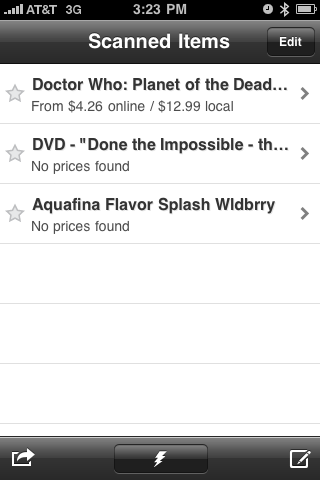
When you first bring up Red Laser, you are presented with a list of scanned items. Naturally, the first time you use it, it will be a blank list. I've included a few items as examples. The interface is fairly simple and straightforward. You can touch the stars next to an item to mark them as favorites. Favorites are protected items, and it is a good idea to mark things that you regularly shop for as favorites so your can check prices before heading out shopping. Note that you can only mark and unmark favorites from this screen.

Tap the edit button in the upper right corner and the list updates to include red deletion indicators. These only appear to the left of items that are not favorites. Tap one of these icons and a "Delete" button appears on the list item. Tap that and it is gone.

Also on the edit screen is a "Clear" button in the top left corner. This one will delete all the items in the list that are not favorites. You get the usual verification warning at the bottom of the screen, but other than that, there is no going back from this one, so be sure when you use it.

Tapping on any of the items in your list will re-run the search for that item giving you updated information about where you can find it. But we'll cover that in a minute.

Skipping down to the bottom left of the scanned items list, we find what looks like a regular forward button. This button actually has a dual role. It will forward your list of scanned items as an e-mail, letting you send it to yourself, or to someone else. This is one way to create that pre-birthday or pre-christmas wish list for your family. But you can also access Red Laser's help page from this pop up. This is a little unusual placement for a help page. Then again, it is a very simple help page. I suspect most users will never really look for it.

The help screen is the only place that notes that there are additional settings for Red Laser under the iPhone's Settings screen. And there is a link to an instructional video for those who want to find better ways to use Red Laser. Yet even taking that into consideration, I still think that most users won't need the help. The most basic instruction is to just tap the button with the lightning bolt on it. And that is what we're going to next.

Click Done to return to the Scanned Items screen and tap that bottom center button, and you turn control of the iPhone's camera over to Red Laser. I have to apologize for some of the blurriness in the following screen shots. It is a little difficult to take a decent screen shot of the scanner while holding the phone so that it doesn't successfully scan the barcode and move on to the next screen.


Red Laser puts a template over the screen to help you position the product and the phone properly. The notes at the top of the screen help you to pick out which of several potential sets of barcodes you will want to scan. This is useful when you are dealing with products that have multiple barcodes on them. Note the Multiple indicator that is turned off in the bottom right of the screen. This isn't for dealing with multiple barcodes. This is to help you scan multiple products. With that flicked over to the on position, you can scan several products in a row and then go back to the scanned items listing to see the results. This is handy in many situations, but for now, we'll just focus on one product.

When you are first positioning the iPhone to scan a product, the alignment guide bars are white. As you bring the bar code into the correct alignment, Red Laser detects this, and changes the tip text to "Hold still for scan." as seen below.


Now, this looks like the right position for a scan, but there area actually two sets of bar codes in the range. Otherwise you can hold very still for quite a while without picking anything up.


This picture shows the almost correct position for scanning. It is actually a bit low on the bar code so that I could get the screen shot. When the phone is positioned correctly over the bar code it automatically scans the bar code and proceeds to search for matching entries. Red Laser was created specifically for the iPhone's fixed focus camera and uses a technology developed by Occipital to correct for viewing the bar code at the wrong focal distance. Occipital has actually developed an SDK for this technology allowing other developers to build their own apps with this barcode scanning tech. Details on that can be found at http://www.redlaser.com/SDK.aspx. The SDK is a free download, but there are additional costs for licensing and creating a developer account.

On the results screen, Red Laser displays the hits from searches for the scanned bar code against Google's database and TheFind's database. Both sites have data for online vendors, but TheFind also has data on pricing from a number of brick and mortar stores. Red Laser uses your location information to limit this to the stores closes to you and presents these in a separate local listing. The listing are grouped by source and then sorted by price. And for some items, there are special listings.

When you scan a food item, Red Laser will also pull up Nutritional facts from DailyBurn, if they are available, and any allergen information available from FoodEssentials. These results show up above the price listings and make a very handy, and portable, reference for finding foods that fit your diet, and avoiding those that will set off your food allergies.

When scanning books, Red Laser also performs a search of local libraries and returns a listing of those that have the book listed as part of their catalogs. Currently this capability is only available in the United States.

Of course, no matter how good Occipital's scanning technology is, there is always the possibility of running into something it just cannot scan. This could be because the bar code is dirty or damaged, or even obscured. In any of these cases, as long as you can read the number codes at the bottom of the bar codes, Red Laser can still help out. The button on the bottom Right of the scanned items screen will bring up a keypad that will allow you to enter the codes manually. When you've entered the right number of digits for a valid code, a green check mark will appear at the right of the display and the "Done" button will enable itself.

Now, as nifty as Red Laser may be for the consumer, there are some stores that just don't like the idea of someone coming into their store, scanning their inventory, and finding out that someone elsewhere is undercutting their prices. And some of them will still throw you out of the store even if you assure them that they really do have the best prices in the area. Here at the Nifty Tech Blog we believe in supporting our local merchants, but we also believe in a consumer's right to take their business elsewhere. It is up to each person to find their own balance between the two.

However, Red Laser does include a few things to make it easier to avoid a confrontation. Once you've installed Red Laser on your iPhone, you'll notice application settings for Red Laser in your iPhone's Settings application.  We mentioned these earlier. Among these is an option to make the barcode scanner silent.  Normally, when Red Laser successfully scans an item, it makes a beep similar to that of a cash register scanning an item. Turning on silent mode eliminates that beep and will make it easier to do discreet scanning in your local store if you choose to.  There is also a control for the types of barcodes that Red Laser will scan.

Under the product search area are tools to allow the user to select the local currency, disable the automatic search, or to deactivate the local search if you happen to be a privacy minded individual who doesn't want your locality information to be used.

The one odd thing I have noticed about this panel is that my version information says I'm using 2.2.0, while I clearly have access to functions available in 2.7.0. I am unsure if this is an error in updating the Red Laser software as successive revisions have come out, or an indication that the settings portion of the program hasn't changed since 2.2.0.  You may see different results if you download it today.

Red Laser is elegant in its simplicity, and still delivers powerful tools to the consumer, allowing iPhone users to watch out for their wallets, health, and their waistlines when shopping in the real world.  While it may not be a favorite in every store, it is a favorite here.


Read More..

|

Tuesday, June 15, 2010

iPhone 4, Something new, or more of the same?

With great fanfare, and very little surprise, Apple announced this year's version of the iPhone last week. And probably the most surprising thing about it is that we've seen it before. Thanks to Gizmodo and their somewhat questionable approach to journalistic ethics and property laws.

The new iPhone isn't quite what I expected from Apple. I had originally dismissed the photos from Gizmodo because they showed a device that seemed distinctly un-Apple-like in design. The iPhone 3G and 3Gs showed Apple going to a smoother, more flowing design, curved to fit the hand comfortably. It was quite a change to see Apple go to a boxy, minimalist industrial look instead. In retrospect, we probably should have expected something like this, given Apple's past with the sleek, sculpted Wallstreet and Pismo Powerbooks being replaced by the boxy Titanium Powerbooks and the only slightly more rounded Aluminum MacBook Pros. When changing medium, Apple does tend to go back to basics with their design and then evolve.

Jobs compares the new iPhone design to being similar to an old Leica camera, which seems somewhat odd for the CEO of a modern tech company.  Actually, if they'd finished out the iPhone 4 in brass instead of stainless steel, you could make a case of calling it a more steampunk inspired design. Just brass and glass. Of course, if you go for Apple's "bumper" accessory "case" (how can it be a case if it only covers the sides?) that will help round off the edges. But the flat, squared-off design of the iPhone 4 seems very reminiscent of the first generation iPod nano. I thought Apple had moved past that phase.

Apple continues its odd obsession with making thin devices. While I can see the advantage in making lighter, more portable devices, we are at a stage where there is little to be gained by thinness. While technology has managed to create functioning displays as thin and flexible as an old slide transparency, such products are still a ways from the market. Of course, if someone manages to make a smartphone with a flat plastic display, a battery on one end and a take up reel on the other, I'm pretty sure it will sell. And right now, I wouldn't be surprised if Apple made it.  But that is next year (at least)... Still, this seems more like an attempt at thinness for the sake of thinness. I don't see any real utility being added by squeezing more space out of the phone. In fact, I'd say that a lot of people would have been very happy if Apple had kept the previous volume of the iPhone and just filled the space vacated with more battery. The battery is the biggest component in the new phone, and more battery time is hard to perceive as a bad thing.

Perhaps this is an extension of the uni-body trend from the Macbook. The iPhone isn't a uni-body, but the two stainless steel antennas that form the sides of the phone are the major structural components of the phone. Does this make it a duo-body design? There is a lot of logic behind minimizing the number of structural joins in a product. This simplifies the assembly process, reduces costs, and makes repairs easier. When done correctly, the end result is a product that is more solid and reliable.

Another of Jobs' featured changes is the new Retina display on the iPhone. How soon will this come to the iPad, I have to wonder. It really ups the ante for the artwork in apps. One has to wonder how IOS 4 apps for the iPhone will look on the iPads currently in the market. This kind of high-density display is great for a small device like a phone, but I expect that soon people will want to see Retina displays on all kinds of devices. I am sure that if this year's new iPod Touch (expected in September) doesn't have a Retina display, many consumers will be screaming bloody murder (OK, more like unfair business practices, but still.). And I wouldn't be surprised seeing these kinds of displays on other iPods. They are ideal for small screens.

But I would not be surprised if pundits start talking about a Retina Display iPad before Christmas rolls around. Or an iMac with a Retina Display. Or 25 to 30 inch Retina Displays for your computer. While these things may come in the next five to ten years, I don't see them coming in the next 1 - 2 years.  Screens of this density increase exponentially in cost as they get bigger. And if you think your video card is working hard to keep up now, just imagine increasing the number of pixels in the same area by a factor of four!

More good news: 802.11n WiFi is finally coming to the iPhone. For owners of the iPhone 4 this will mean an opportunity to get all of your Apple devices off of b and g networks and into a unified n network structure for faster network throughput. The iPhone has been the last of the currently shipping Apple products that was still tied to the slower b/g WiFi frequencies. Of course, if you're still nursing along older devices, you'll still need dual network support, at least until you can afford to upgrade those other devices.

Judging by the demo, the new Gyro sensors will bring a whole new level of sensitivity to iPhone controls.  In the keynote, you can literally see the normal shaking of Job's hand reflected in the iPhone display during the Gyro portion of the demo. This should be great for games and other programs that require accurate sensing of the position of the phone. I suspect that once the developers get properly up to speed on the new hardware we will see a rash of revisions to games, and a bunch of new augmented reality type apps.

I am unsure of what to make of iMovie for iPhone. It seems an odd choice of Apple to move into facilitating mobile video on the phone. Video editing seems to be a space where space is important. the iPhone's small screen should be a liability to video processing. This may be somewhat mitigated by the limited functions supported by iMovie for iPhone. We won't be able to truly evaluate it until both products are released and into consumer hands. I hope Apple has come up with a really fantastic interface and has packed a ton of functionality into the app, but this one just looks like a stumble to me. It might be good for simple clip trimming, but I don't know that it will be worth the price of the app.

Jobs also announced that Apple will be renaming iPhone OS 4 to iOS 4. This seems somewhat logical seeing as it powers iPhones, iPod touches, and iPads. I expect that we will be seeing some arguments over how to pronounce the new name. Let us hope that there are no holy wars between those who say "eye oh ess" and those who say "eeeos".

Finally unified mailbox and threading are making it to mail on the iPhone. About time. First we get used to these features on Mail on our Macs, then we have to unlearn them when working with Mail on our iPhones. Haven't we all moved to using our phones as our primary e-mail reading and managing tool? Once you start looking at your e-mail on your phone, it quickly becomes the dominant e-mail reading platform, simply so you can avoid having to read the same e-mail multiple times. Or we all move off of POP and onto IMAP for all of our mail servers. Threading makes it much easier to manage e-mail conversations, especially if the conversation is spread out over a long period of time. And for any of us with multiple e-mail accounts to manage, a unified mailbox is a godsend.

Facetime. This is a feature that people have been practically clamoring for ever since the iPhone first came out. But I wonder if even Apple realizes that this may just make the iPhone 4 the first cell phone for the deaf? I'm not sure if it really is the first cell phone that can be used by the deaf, but it does look like it is the first that you can sign on. Providing you can sign one-handed. Apple did include someone signing in the film on Facetime, but otherwise didn't make much about it.  I would have expected them to make a big thing about how it is more accessible for the deaf. Then again, they may have decided that it wasn't as much of a selling point.

For me the second biggest surprise of the event was the announcement that AT&T is going to make customers eligible to upgrade to the new iPhone 4 at the subsidized price 6 months early. Looks like AT&T really wants a big roll out this year. This seems odd as AT&T doesn't really make money on people upgrading expensive subsidized phones. Yes, they make money on the 2 year contracts, but unless the customer was otherwise planning on leaving AT&T, they would be making that money anyway. Now upgrades will make lots of money for Apple, so this may be part of AT&T supporting the contract.

Today marks the beginning of iPhone 4 pre-orders, and I have no doubt that Apple's servers will be very busy. But I'm somewhat surprised that Apple isn't taking the same kind of criticism for the iPhone 4 that they took for the iPad. Even with iOS 4 coming out on June 21st changing the look of things, the iPhone 4 isn't that different from its predecessors. It seems more evolutionary than revolutionary.  Yes, there are a lot of updates, but do they amount to a significant improvement? Well, we'll all be able to judge for ourselves come June 24th. Unless the demand is so high we have a hard time getting our hands on one.

Apple still has not managed to do a the worldwide rollout, but they do seem to be trying to get the iPhone out much faster than the iPad. The initial June roll out will supply iPhones to five countries, with successive roll outs over the next two months. If Apple can manage to pull of this ambitious schedule, and not continue to push releases back, it will be a remarkable comeback from the staggering iPad rollout. The iPhone is a more mature product, and Apple does have a better idea of how it will be received by the market, but that really doesn't come close to the series of delays that plagued the iPad rollout.

What little we've seen of Apple's new iPhone accessories makes them seem rather dubious. The "bumper" case seems overpriced, but it does appear to fit with Apple's "naked" iPhone and iPod model. It remains to be seen of Apple has designed this phone to still fit on their own docks while wearing the "bumper" case, or if the phone must be pulled out of the case in order to dock it. And it may be that the one truly revolutionary thing about the new iPhone may be the hardened glass that covers the front and back of the phone. If they have finally come up with a material that doesn't need a case in order to stand up to daily wear and tear without being covered with cracks and scratches, then that will be something exceptional in the industry.

Until the 24th, we'll just have to wait.  And speculate.
Read More..

|

Tuesday, June 08, 2010

Poll time.

Last month's poll was about ways to process text, and the results were a little disappointing. The three respondents were equally tied between TextEdit, Pages, and Open Office Writer. It is hard to draw any kind of conclusions with such a small sampling, but if I had to hazard I guess, I'd say it is an indication that there isn't a lot of strong feeling in favor of any given text editor.  At least not among my current group of readers.

With yesterday's announcement of the iPhone 4 coming to stores in the US on June 24th, and IOS 4 being released on June 21st, we're going to be hearing an awful lot about them in the coming month. So for the remainder of June, I'd like to hear about what the iPhone is missing. This month's poll question: What single missing feature would make you want to get a new iPhone 4 right now?

I'm taking the July 4th weekend off, so this month you get a little extra time. Poll closes at Midnight, July 5th, Eastern Time.

And if these polls aren't interesting you, tell me what would.
Read More..

|

Monday, June 07, 2010

Evernote

Are you one of those people who goes out to a restaurant and has great ideas over dinner? You scribble them down on a napkin, or the back of your receipt and then stuff it into your wallet or a coat pocket and never seem to get back to it? Or if you do get back to it, some important part of it always seems to be missing? If you can relate to this, Evernote was created for you.

Evernote is a free service provided by the Evernote Corporation. It allows you to capture, organize, and reference your notes, pictures, web clippings, and more.  And you can do it from their web interface at http://www.evernote.com, or by downloading a client.  Currently clients are available for Mac OS X, Windows, the iPhone, the iPad, Android, Blackberry, the Palm Pre or Palm Pixi, and for Windows Mobile. Once you've created your free account, your notes will sync to each client as it connects to Evernote's servers.  The number of notes you can have is unlimited, but with a free account, you're limited to uploading 40MB of notes per month.  Evernote also offers a Premium account for $5 a month or $45 a year that increases your upload limit to 500MB a month and provides additional extra functions.

Getting started with Evernote is just a matter of creating a username and password and providing Evernote with a valid e-mail address. Evernote will send you a confirmation e-mail. Verify that you did create the account, then sign in with your new account, or download and install one or more clients.  You're ready to start capturing your notes.  Simple.

There are a lot of ways to get something into Evernote.  The most obvious is to use one of the clients to create new text notes, or take a snapshot directly into Evernote from the client.  In my experience with my iPhone, taking photos directly to Evernote was always an iffy proposition.  I've lost pictures because the upload never completed, or a phone call came in during the upload, or because the client app just popped.  Much safer to take the picture to your phone's cameral roll, and then upload it from there to Evernote.  And on some devices you can also take voice notes as well.

The Windows and Mac clients also install an Evernote web clipping tool.  You can also download and install versions of the tool for various browsers on those machines where you don't want to have a full browser, but use often enough to want to be able to capture web clippings.  Once the tool is installed, just click on it to send an entire page to Evernote.  If you only want a portion of a web page, just select the area you want first.


Evernote has a few other ways of allowing you to import information.  With each account you get an e-mail address that allows you to send or forward e-mail right into Evernote.  So when you get that hotel conformation letter you can forward it and have it in Evernote where you can find it quickly.  More on finding things later. If you start getting spam at that address filling up your Evernote, just go into settings on the web client and generate a new e-mail address for your Evernote account.  In addition to e-mail, you can drop Twitter messages into your evernote account.  Just follow @myen (My Evernote), and you will receive a direct message with a confirmation link.  Click on that link and sign into Evernote to associate your Twitter account with your Evernote account.  Then, if you tweet or retweet anything with @myen in it, that tweet will go right into your account.

Evernote will also import your Google Notebook items as notes.  To do this one you'll need to sign in to the web client and go into settings.  Click on the Import tab item, then click on Google Notebook. There is an instructional video, and detailed instructions to help you choose the import settings you want.  Presumably, Evernote will be expanding the number of services that you can import from in the near future.

Some products are even building in Evernote compatibility.  For example, the Cannon ImageFormula P-150 will scan documents and upload them directly to your Evernote account.  The Eye-Fi wireless SD card can send pictures directly from your digital camera to your Evernote account.  Mobile applications like Seesmic and Egretlist will also sync content to your Evernote account. You can find a list of similar products on Evernote's website.

Part of the Evernote package is syncing across all platforms, and access to all the various versions of the Evernote client.  Included with that is Evernote's Text Recognition feature.  Whenever you add an image, or a note containing images to Evernote, software scans the image looking for text.  It then indexes your note with the text that it found and the position of the text in the image. This allows you to find these images by searching for the text within them.  For example, I went on a picnic last year and tried some new wine. I took a picture of the wine bottle, so that I could remember to get more of it later.  Let's say I don't remember the wine, but do remember that a box of Club crackers was also in the picture.  I search on "club" and see what I find:


My search word is even highlighted in the picture.  Evernote doesn't keep an OCR copy of your image to search, and you can't get an OCR version of a photo out of Evernote.  Instead it keeps a list of possible text interpretations with different scores.  This lets you search for text in images without having to look at each image.  It isn't perfect, but it does give you a best guess.

Evernote lets you organize your notes in two basic ways.  The first is that you can assign tags to your notes.  Tags can be anything you want, providing it is meaningful to you.  They let you pull similar data from across your list of notes.  The second method is to group related data items into notebooks. Notebooks pretty much work like folders, except you cannot nest them.  So, if you were a frequent traveller, you could create a notebook for each trip and add all the planning information for your trip into that notebook.  You could then tag your hotel confirmation as "Hotel", your rental car reservations as "Rental Car", your plane tickets as "Flights", and your schedule as "Itinerary".  Then when you need to find something, you can either look it up by the trip, or by the type of information it is.  Or you could create notebooks for "Hotel", "Rental Car", et al and tag the items by the date and destination of the trip.  Whatever makes sense to you.

One thing to be careful of when creating notebooks, is the kind of notebook.  Notebooks can be either synced or local, and once created the type cannot be changed.  You don't want to put data you need to take with you into a local notebook.


One of the nifty things that you can do with Evernote is to share your synced notebooks with others.  Either you can share the notebook with the world, or you can share it with specific individuals.  Evernote actually implements their website FAQ as a series of shared Evernote notes.  You can search it, or browse through the notes.  And you can link individual notes, or groups of notes from searches to your account so that you can pull up that help at need.  When you share a notebook with the world, it becomes available at a public url that begins with www.evernote.com/pub/ and your username. At the next level down, you get to set the name the world will see and add a description.  You can also determine the sort order of the items in the folder.

When sharing with individuals, you will need to provide the e-mail addresses of the individuals and determine if you wish to require them to log into Evernote in order to access the notebook.  You can also include an explanatory message to go along with the invite.  With a free account or when sharing to the world, you can only share files as read-only items, but with a Premium account you can choose to give your invitees privileges to edit the notebook and add or delete notes.

With the free account the kind of files you can place in a note are limited to text, images, audio, and PDF files.  And that is really enough for most people's needs.  But if you need more, you can try a Premium account, which will allow you to upload any file type.  It also allows you to search within PDF files, access note history, and maintain local notebooks on an iPhone or iPad.  I haven't tried the Premium account yet, so I can't vouch for these features.

With the Premium account, the maximum size of an individual note is bumped up to 50 MB from 25, and the user gains the ability to turn off the advertisements that are displayed on the Evernote web site and in the client.  The ads aren't particularly offensive, but they do take up screen space.  Regular Evernote accounts are secured by the logon information, which is transmitted to the server using SSL, while the actual notes are transmitted in the clear.  With a Premium account, your entire session is encrypted with SSL instead of just the logon info.  If you're wanting to store just a few notes with sensitive information, you can encrypt just those notes using the windows client for Evernote.  Unfortunately these encryption tools haven't been built into the other clients yet.  And remember that encryption key, because you will have to type it in whenever you want to access any encrypted notes.
The big power of Evernote is the sync.  The fact that you can collect your notes anywhere you happen to be, right when the thought hits you, then organize them when you have time, and carry the finished product on your mobile device, or access it through the web.  Even if you're in an area with no network connection, you can add and edit notes and then sync the changes when you can connect again. The best part, however, is the fact that the guys at Evernote aren't sitting back on their laurels.  They're still working to improve and expand Evernote to provide new tools to capture, organize, and retrieve your notes.  It will be interesting to see what they add next.
Read More..

|

Contribute to The Nifty Tech Blog

Do you know of a product or service that you think should be featured in The Nifty Tech Blog? Would you like to contribute to the Blog by providing artwork, reviews, or editorials? Want to tell us what you like, what you hate, or just point out something that can be improved?

If you answered "Yes" to any of the above questions, take time now to write to The Nifty Tech Blog at niftytech@niftytechblog.com and share what is on your mind!

  © Blogger templates The Professional Template by Ourblogtemplates.com 2008

Back to TOP